



自迁移出 MediaWiki 以来,本页内容尚未经过审查。如果您愿意帮忙,请查看帮助指南!
{| |style=”vertical-align:top” |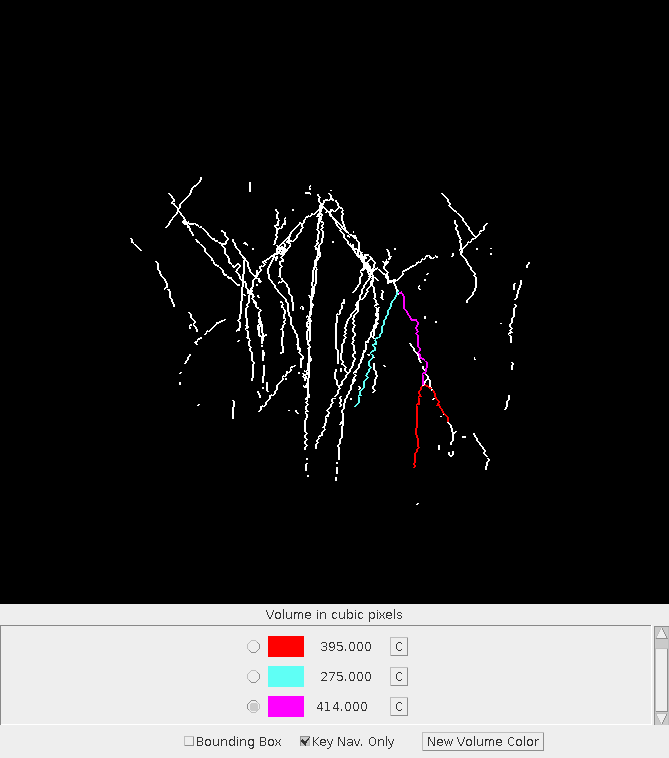 |}
|}
简介
体积计算器插件旨在让用户通过直接从 3D 图像中选择任意血管段来测量它们的体积。尽管体积计算器是为小鼠后肢缺血实验的量化而开发的,但它对于任何网络的体积测量都应该有用。这种可能性由以下要求决定:插件配置为最适合由 Skeleton 3D 和分析 3D 插件读取和分析的图像。因此,建议用户首先使用这两个插件检查图像。
体积计算器使用三个斐济插件:
- Skeletonize3D用于执行骨架化,
- AnalyzeSkeleton用于分析和
- 3D Viewer用于显示。
用法
本节介绍如何使用体积计算器。使用磁共振血管造影 Magnetic resonance angiography|(MRA) 作为示例图像。该 MRA 是针对小鼠后肢脉管系统的,并且是在体内进行的。
图像采集
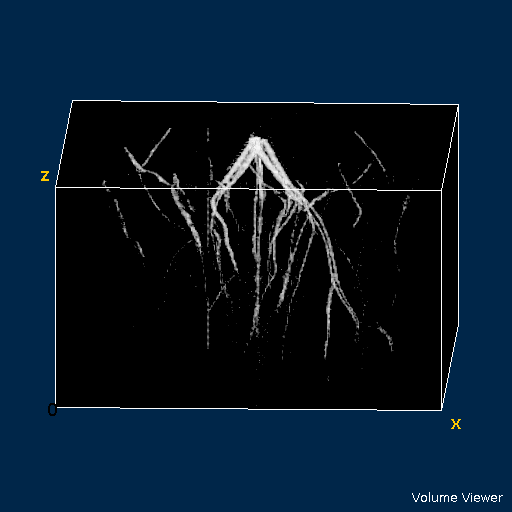 Figure 1. 3D view of mouse hindlimb vasculature.
The image can come from any source. But be aware of the plugin’s limitation: see the Introduction above. Figure 1 shows a 3D rendering of the example MRA. This MRA consists of 150 slices, each 512 X 512 in size.
阈值
如果您的图像不是二进制的,则必须对其进行阈值处理,以便体积计算器的第一阶段正常工作。这些设置通常由图像的性质决定,例如图像的噪点或您希望保留的功能。您可以通过 Skeletonize3D 插件运行图像来预先测试该图像。可以通过获取此骨架图像并将其应用于AnalyzeSkeleton插件来执行第二次测试,看看是否可以对其进行分析。如果无法分析,则通常调整阈值可以使其“可分析”。
体积计算
体积计算器位于斐济菜单中的Plugins › Analyze处。运行时,它将把当前图像作为输入。处理立即开始;其进度显示在状态栏中。成功运行后,插件将显示“体积计算器”窗口(图 2)。该窗口实际上是 3D Viewer 插件。体积计算器已获取其最终结果 - 分析图像的 Java 3D 表示 - 并要求 3D Viewer 显示它。
用户界面
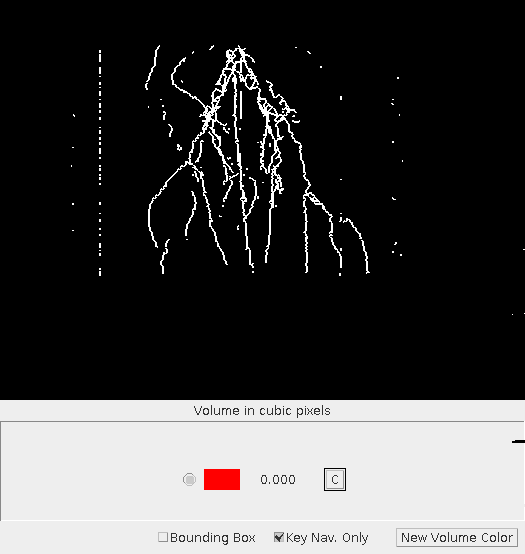 Figure 2. Volume Calculator user interface.
Because the 3D Viewer plugin is used for display, its menu is available at the top of the window. Below this menu line is the image area where the image can be manipulated with all of the available 3D Viewer commands. At the bottom of the window is an additional area that Volume Calculator uses to display volume results. It will be discussed in more detail in the next section. Below this area are two check boxes. These check boxes alter the display and behavior of the 3D Viewer. Checking the Bounding Box will cause the 3d Viewer boundary box to be displayed. Checking Key Nav. Only allows you to perform 3d transformations such as rotation with the just the directional keys.
####选择
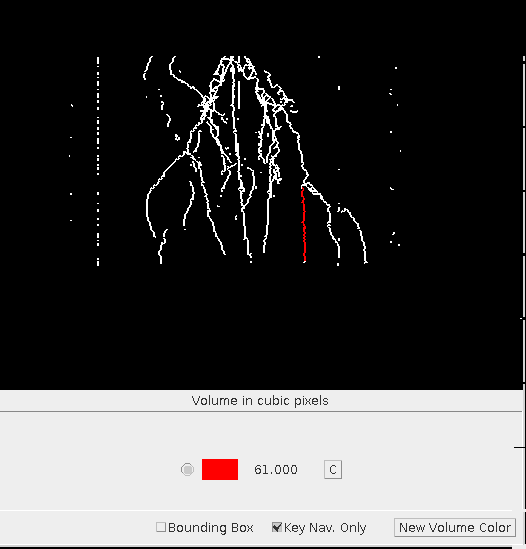 Figure 3. Selection of a line.
The selection of the lines (vessel segments in a vasculature) is performed entirely with mouse clicks. For the purpose of selection, lines (segments) are delimited by the end of a line and/or a line branching from it.
所选线以当前测量颜色显示;双击一条线将更改该线的颜色,并根据原始阈值图像中相应的体素测量体积(图 3)。体积显示在测量颜色旁边。测量单位可以在图像底部看到。体积计算器将尝试查找图像中的单位信息。如果不可能,则测量单位为体素。通常,测量会显得太短,但旋转图像会显示选择停止在分支点 - 可能非常小。用于计算体积的算法是由原始图像中的体素约束的膨胀(反向骨架化)的变体。通过共享连接处的体素来处理分叉等。
颜色旁边的“C”按钮用于将该颜色的所有线条重置为白色。音量设置为零。 另一种形式的选择是单击一条线上的某个点一次,然后单击另一条线的其他位置一次。体积计算器将尝试找到两点之间的连接路径。如果可能,则将路径更改为测量颜色并计算整个路径的体积。如果没有连接路径,则会显示警告。
分组测量
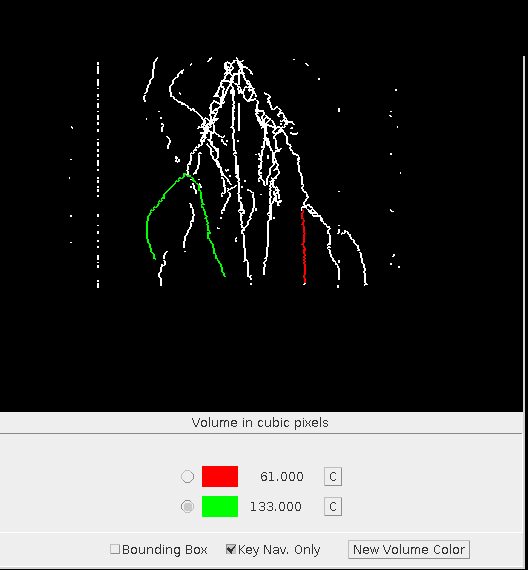 Figure 4. Two groups of measurements.
The Volume Calculator allows you to gather measurements into an arbitrary number of groups. The lines in each group are distinguished by the color given to them when they are selected for measurement. Initially there is only one color available: Red. It is shown, selected, in the bottom area of the window in Figure 3. To create another group of measurements, you push the New Volume Color button. A color dialog will be presented. Create a color and press OK. A new entry will appear with that color. The color will be automatically selected so that any new selections will be shown in that color. In Figure 4, a second color has been added and a measurement made.
体积计算器跟踪与颜色相关的测量值。如果您选择颜色与测量颜色不同的线,则会从原始颜色总计中减去该线的体积,并将其添加到测量颜色总计中。
参考文献
体积计算器插件使用以下插件:
- Skeletonize3D用于执行骨架化,
- AnalyzeSkeleton进行分析。用于创建 Java 3D 图像的树遍历也是基于此插件中的树遍历。
- 3D Viewer 用于显示和图像操作。
许可证
版权所有 (c) 2012,Peter C Marks 和缅因州医学中心研究所,保留所有权利。
如果满足以下条件,则允许以源代码和二进制形式重新分发和使用,无论是否经过修改:
- 源代码的重新分发必须保留上述版权声明、本条件列表和以下免责声明。
- 以二进制形式重新分发必须在随分发提供的文档和/或其他材料中复制上述版权声明、此条件列表以及以下免责声明。
本软件由版权所有者和贡献者“按原样”提供,不承担任何明示或默示的保证,包括但不限于适销性和特定用途适用性的默示保证。在任何情况下,版权所有者或贡献者均不对任何直接、间接、附带、特殊、惩戒性或后果性损害(包括但不限于采购替代商品或服务;使用、数据或利润损失;或业务损失)承担责任。中断),无论是何种原因造成的,并且基于任何责任理论,无论是合同责任、严格责任还是侵权行为(包括疏忽或其他),均因使用本软件而产生,即使已被告知发生此类损害的可能性。